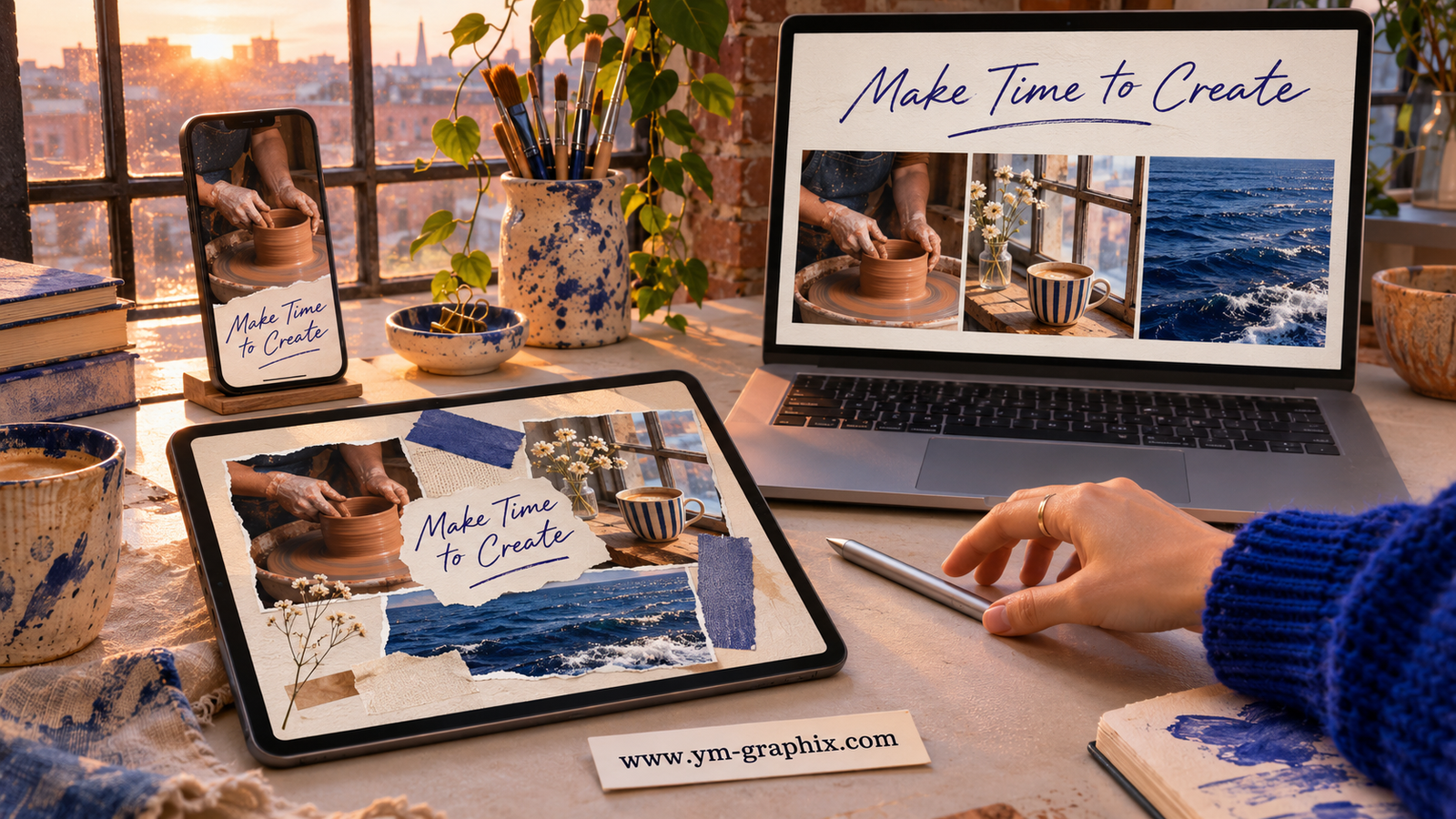
One vision board, three ways to see it
A digital vision board is an editable collage of pictures, words and goals you keep on a screen. To make one, pick a few priorities, choose images that bring them to mind and add one action you can take this week. Use a tall layout for your phone, a roomy canvas for a tablet you write on, or a wide grid for your computer.
Imagine you want to make more time for pottery. On your phone, a photo of clay on the wheel reminds you to book a studio session. On the tablet, the same image sits next to sketches and ideas you can update. On the desktop, it gets a spot beside your other priorities. The goal travels with you. Its layout changes with the screen.
This article contains affiliate links. We may earn a commission when you purchase through them.
Quick picks by screen
- Phone photo collage · Six editable Canva layouts with photo slots.
- Tablet goal journal · An undated landscape PDF with a dedicated board page.
- Wide desktop board · An editable Canva layout sized at 1920 × 1080.
Digital vision board ideas for phone, tablet and desktop
Before opening an editor, decide when you want to see your board. A morning glance, a Sunday planning session and a reminder beside your work all call for different amounts of detail. These three examples use the same studio goal to show how the layout can change.
Phone · A reminder you can read at a glance
Use one portrait photo or a short stack of two or three. Keep the main subject in the middle of the composition, where it is easier to keep visible after cropping. If you use the lock screen, leave room for the clock and notifications. For the home screen, check how the image reads behind your usual icons.
Try this layout: Put a close-up of hands shaping clay in the center and tuck “Book a studio session” just below it. Check both screens before you decide where the caption works. A quiet patch of background gives the words somewhere to sit.
Tablet · A collage with space to think
Use the orientation you naturally hold the tablet in. If you tend to plan in landscape, try a large picture on the left and a set of smaller notes or sketches on the right. A portrait page can work well if it lives alongside a planner you already use.
Try this layout: Add a pottery-wheel photo, two glaze swatches and a corner for your first bowl sketch. Leave a blank strip for the next check-in and write “Choose one glaze to try.” An editable canvas suits frequent image changes. An annotatable PDF suits pen notes and sketches.
Desktop · A wide view of your priorities
Divide the screen into a few zones, such as Create, Learn and Make time. Keep the area where desktop icons or the dock sit quiet. If you use multiple displays, prioritize the screen you actually see between tasks and preview the export there.
Try this layout: Give your pottery image the biggest tile. Put “Saturday studio” in a smaller calendar-shaped tile and reserve the third area for the skill you want to learn. If you rarely see your desktop, keep the editable board pinned in an app you already open.
How to make a digital vision board
- Write three priorities in your own words. “Make things with my hands,” “move outside” and “see more of my friends” are easier to design around than a stack of abstract words. Start with what you want to make room for this month.
- Build a small image folder. Choose one main image and a few supporting pictures. A photo of your actual walking route or a sketch of the bowl you want to make can be more meaningful than a polished stock image. Use your own photos or images you have permission to use.
- Pick the master layout. A tablet collage works if you like assembling and revisiting pictures. A desktop grid suits separate categories. If all you need is a phone reminder, start with a portrait canvas and keep it simple.
- Attach one action to the strongest image. Write “Book the Saturday class,” “Pack walking shoes” or “Text Sam about Friday.” Give the action enough contrast to read on the device without zooming.
- Make a copy for each additional screen. Reuse the pictures and colors, then move the elements. For a phone, keep the focal image and one short line. For a wider screen, arrange the same ideas side by side. Match the canvas to your actual display when you need a precise fit.
- Export and open it where you plan to use it. Try a PNG for a collage with lettering, a JPG for a photo-led image or a PDF for a board you want to annotate. Keep the editable original. In Canva, you can choose the format and pages under Share → Download.
A two-minute screen check: Open the finished board at normal size. Can you read its main line before you lean in? Is anything important obscured by the clock, icons or dock? Step away and come back. If your eye lands on the right picture first, you’ve got a layout worth keeping.
If you need help choosing symbols, pictures or phrases, start with what to put on a vision board. For help defining your goals before choosing a screen, follow the step-by-step vision board guide.
Six digital vision board templates by device
Look for files that match how you want to work. The phone and desktop picks below are editable Canva layouts. The tablet picks are PDF planners you can mark up in a compatible app. If you want to choose between print, PDF, Canva and Photoshop, see our broader vision board template guide.
Phone templates for a daily reminder
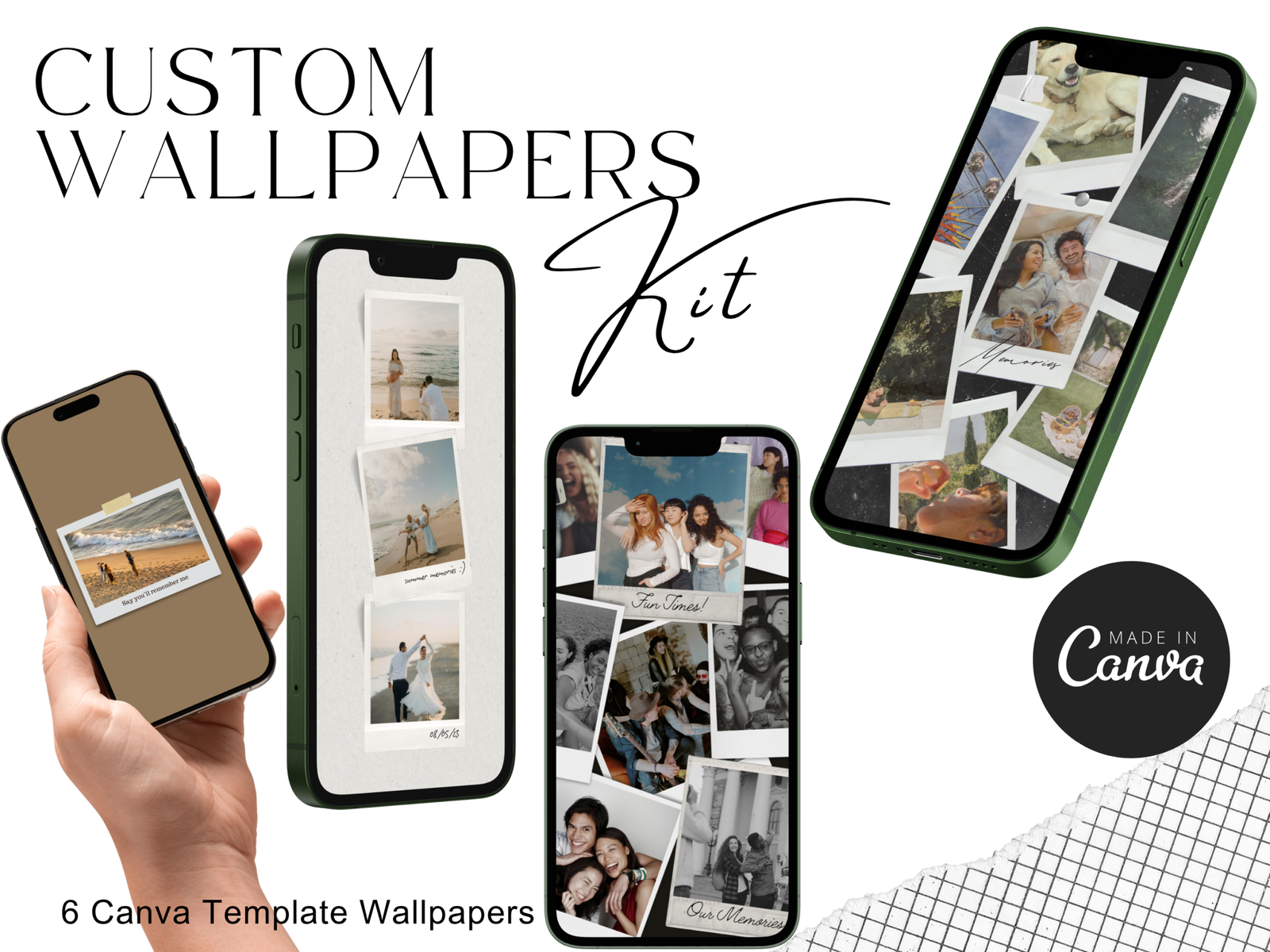
Best for a photo-led phone board
Custom Wallpaper Canva Templates Bundle
By Wicked Creative
Six editable Canva phone-wallpaper layouts with Polaroid-style frames. The listing confirms editable photos, text and colors.
Use two frames for images that represent the same goal. Make the larger photo the one you want to see every morning and use the smaller one for the place or person that helps you get there.
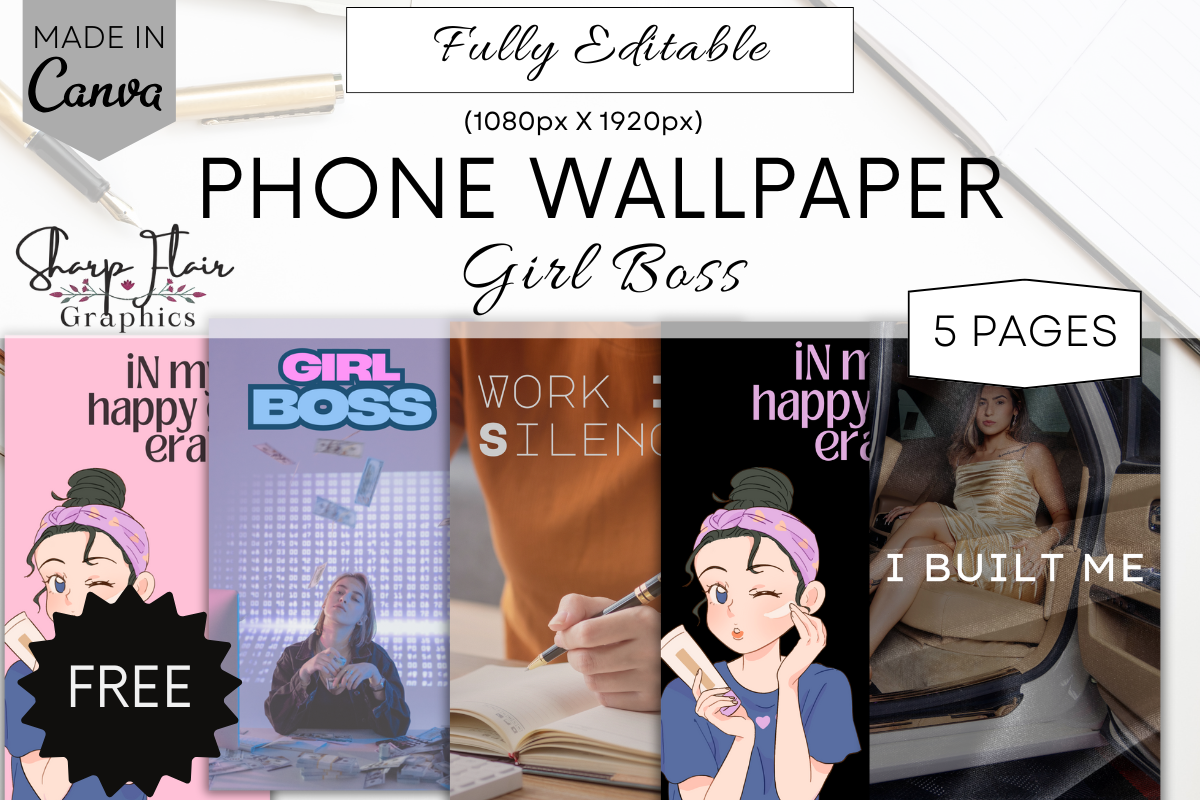
Best for a short, text-first reminder
Girl Boss Phone Wallpapers | Canva
By Sharp Flair Graphics
Five editable Canva phone layouts. The designer presents them as motivational backgrounds that can also be used as phone vision boards.
Replace the example wording with a phrase you would say to yourself. A short line such as “Open the sketchbook” can carry the whole layout.
Tablet planners with room to write
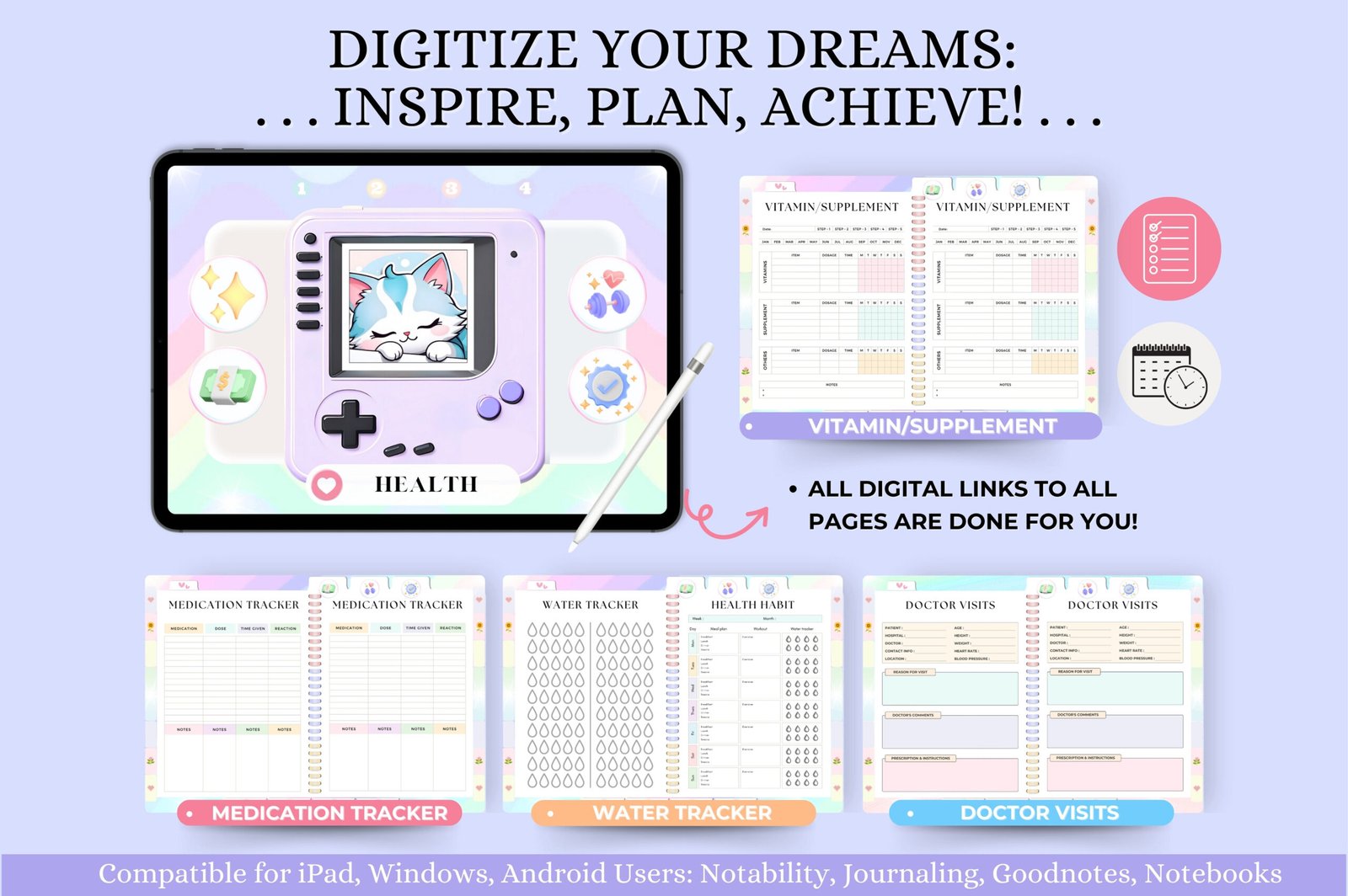
Best for a tablet goal journal
Undated Digital Planner for Goodnotes
By Tas Creative Studio
An undated, hyperlinked landscape PDF with vision board and goal-planning pages. The listing names Goodnotes, Notability and other PDF annotation apps.
Keep the board in landscape and leave space beside the main image for handwritten notes. Carry one action from the board into the planner’s weekly page.
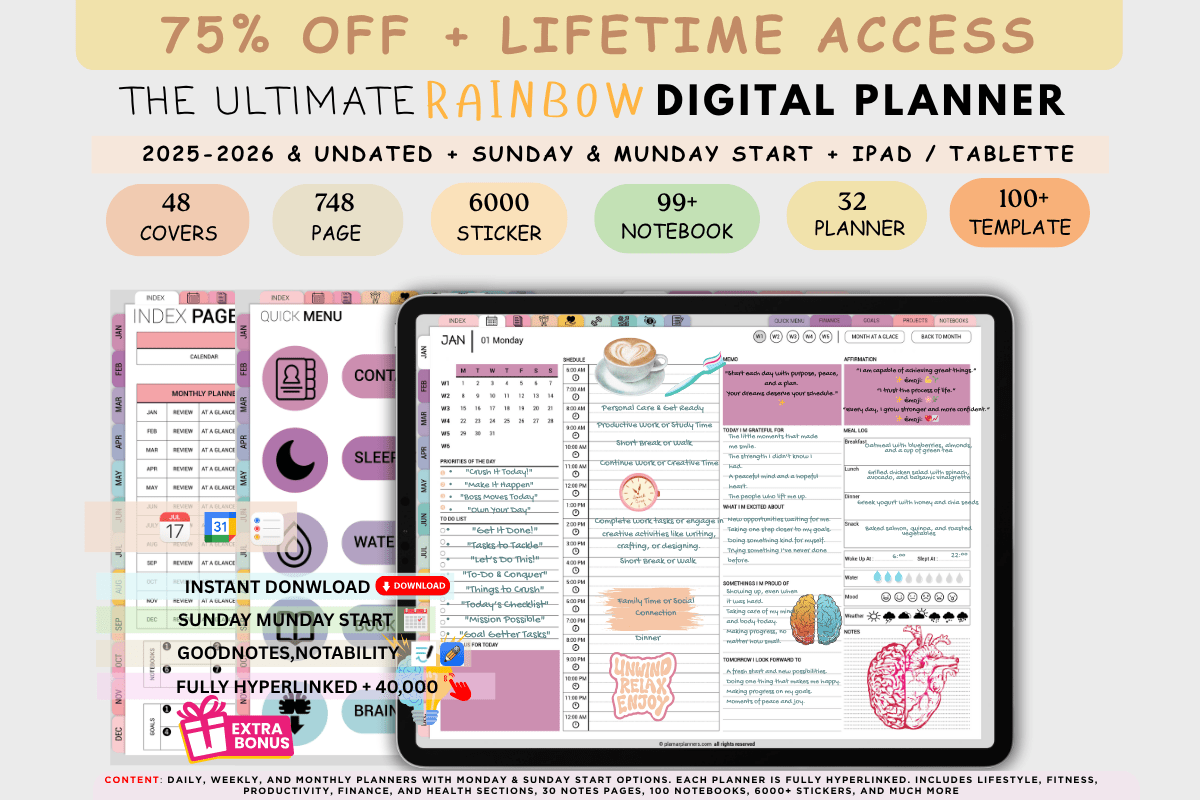
Best for a board inside a full planning system
All in One Digital Planner Rainbow Color Bundle
The listing includes vision board pages, dated and undated versions and hyperlinked navigation. It lists Goodnotes and Notability among supported PDF annotation apps.
The bundle makes sense if you want your goals, tasks and notes in the same planner. Start with the undated version if you want to keep using the same setup through the year.
Wide boards for a laptop or desktop
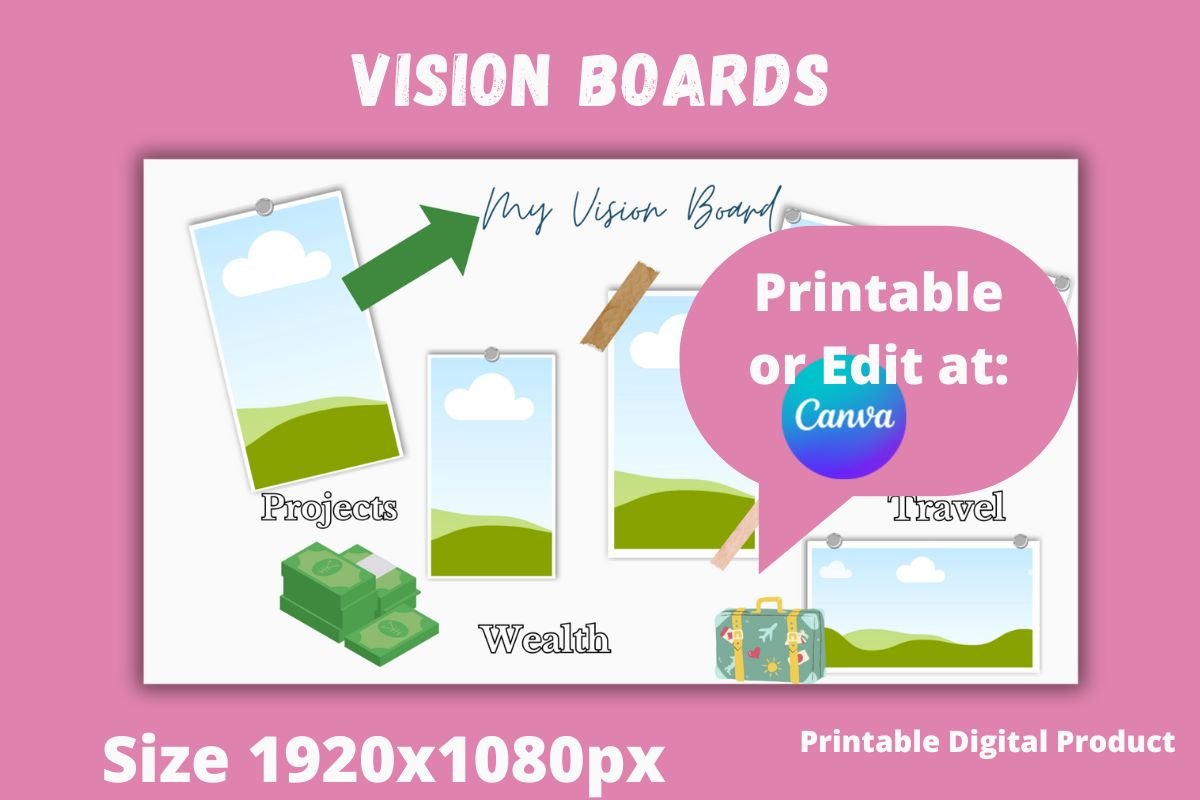
Best for a wide board with several priorities
Vision Board Editable and Printable
By Happy Sewing Time
The listing includes a 1920 × 1080 Canva layout and an 11 × 8.5-inch print version. It confirms that you can customize the colors, fonts and photos in Canva.
Open the wide canvas for laptop use. Give the main goal a generous tile and use the remaining areas for two priorities you want to keep in view.
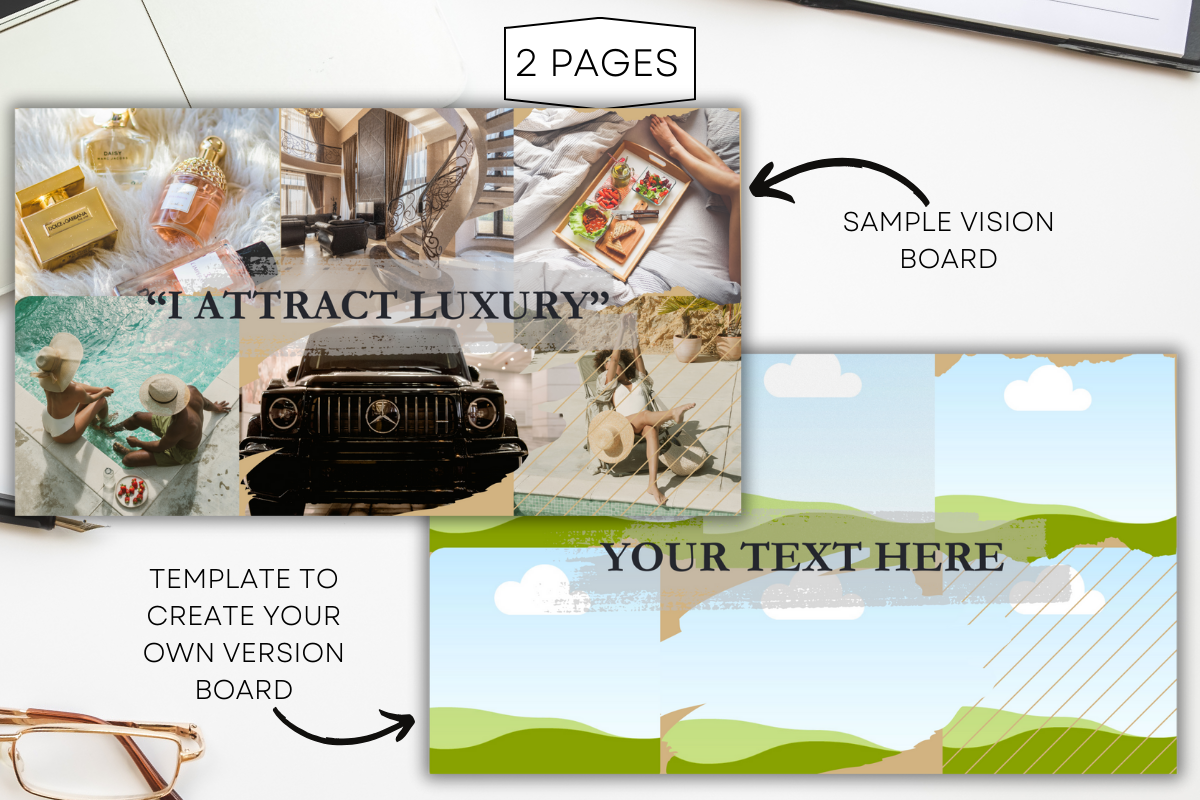
Best for a photo-led desktop collage
Luxury Vision Board | Canva Template
By Sharp Flair Graphics
A 1920 × 1080 Canva layout with a sample board, a blank version and reflection sheets. The wide collage gives you room to group several images around one theme.
Replace the example photos with scenes that represent what you want to make room for, like a studio corner or a quiet weekend away. Leave one space for a short next step.
Didn't find what you were looking for?
Use the search below to explore more options on Creative Fabrica.
Keep one board you’ll come back to
Start with the screen you already look at when the reminder would help. A class you keep putting off belongs somewhere you’ll see it while you can still book it. A project you want to revisit on Sundays belongs beside your weekly notes. Check in again at the start of a new month or whenever the small action begins to feel automatic.
For one photo-led reminder, start with Wicked Creative’s collage layouts. For a board beside your plans, use the Undated Digital Planner for Goodnotes. If you want the clearest wide starting point, choose Happy Sewing Time’s desktop layout. You can find more layouts to customize in our Canva vision board template guide.
Digital vision board FAQs
What app can I use to make a digital vision board?
Use a design editor such as Canva to move photos and text freely. Use a PDF annotation app when you want to write or draw on a page inside a digital planner. A presentation editor also works if you already use one and can export your slide as an image.
What size should a digital vision board be?
Use the proportions of the screen or page where it will appear. A 1920 × 1080 canvas is a starting point for a 16:9 desktop, but some laptops and monitors use other proportions. On a phone or tablet, check the actual device and preview the image after it is set or imported.
Can I use one vision board on all three screens?
Yes. Save one editable master and make a copy for each screen. Carry the same pictures and priorities across versions. Adjust cropping, spacing and text size for each device.
Should I export my board as PNG, JPG or PDF?
Choose PNG for crisp text and illustrations, JPG for a photo-heavy background when file size matters, and PDF when you plan to annotate or keep a board in a planner. Save the original project so you can update the design later.
Can my board stay private?
Yes. Keep it in a private folder or personal app. For a work screen, a shared tablet or a screen you show on video calls, consider an alternate export with symbols and shorter captions in place of identifying photos or private details.
How often should I update a digital vision board?
Review it when your goals change or at the beginning of the month. If the pictures still feel relevant, update only the action beside them. Save old versions if you want to see what shifted over time.