A vision board wallpaper is a collage of images and words you set as your phone or computer background. Start with three photos and one short phrase. Leave space for the clock on your lock screen, the apps on your home screen, and the files on your desktop.
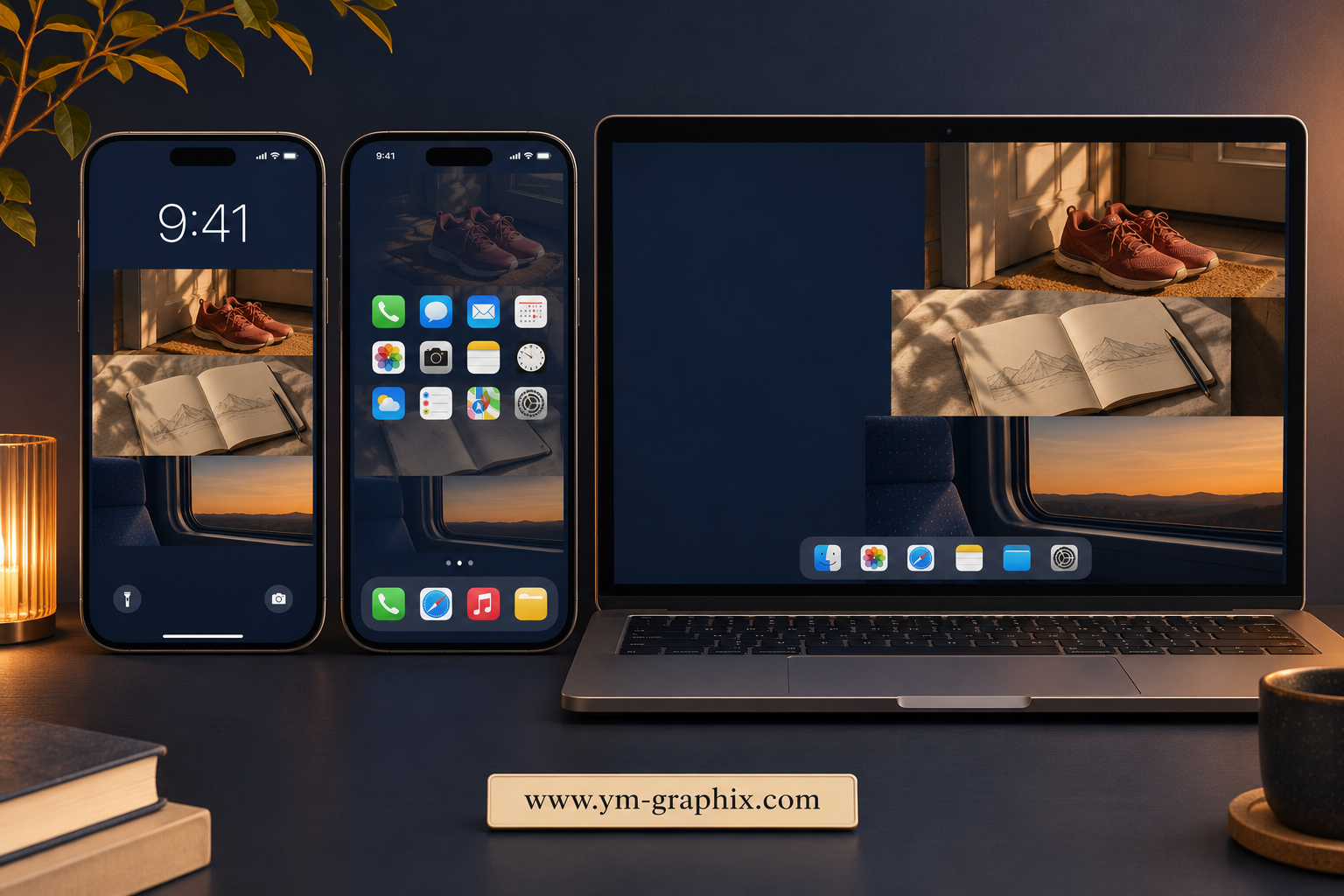
Picture a pair of running shoes by the door, a sketchbook open to a fresh page, and a train window at dusk. The shoes stand for moving more, the sketchbook for making time to draw, and the train for taking a weekend trip. Those same three pictures can feel calm on a phone and surprisingly spacious on a laptop. The difference is where you put them.
One vision board, three wallpaper layouts
The examples below use the same photos and a palette of midnight indigo, rust red and warm cream. Pick a background color from your darkest photo or its softest shadow. Repeating that color across devices ties the three layouts together, even when you move or remove a picture.
Lock screen wallpaper with room for the clock
Use a portrait canvas and place your strongest photo near the middle. Here, the running shoes sit in the center, the sketchbook sits below them, and the train-window photo anchors the bottom of the collage. Keep the area behind the time even in tone. A pale clock can disappear where it crosses a bright horizon.
Try this. Add a short phrase such as “Make time to draw” near the center of the collage, then preview a notification on your phone. If it covers the phrase, slide the words up or leave them off this version. Check the flashlight and camera corners as well.
Home screen wallpaper with quieter photos
Start with a screenshot of your usual home screen so you can see where icons and widgets sit. In your editor, place the screenshot temporarily above the collage. Move the most important photo into a gap. Place the other photos behind a translucent indigo layer so app labels stay readable.
Try this. Use the sketchbook as the only sharply defined photo and let the train image supply a bit of color near the edge. Hide the screenshot layer before export. If your first page is packed with apps, keep this version simple and give the full collage to your lock screen.
Desktop vision board wallpaper with a clean side for files
On a wide screen, arrange the three photos as a compact group beside a solid field. If your files live on the left, put the collage on the right. Stack the running shoes, sketchbook and train-window crops down the right side to guide your eye across the pictures. Give the dock or taskbar a quiet strip along the bottom.
Try this. Add one line beside the photo it belongs to, such as “Saturday morning sketch.” Open a window at your usual size and check what stays visible. If you glance at an uncovered edge between tasks, that edge may be a better home for the line.
12 vision board wallpaper ideas to make your own
Choose a layout for the screen you see at the right moment. A travel board might live on your lock screen, while a current project is easier to revisit near the files you use to work on it.
Lock screen ideas
- One photo, one next step
For a reading goal, use a close-up of your usual chair and write “Ten pages after dinner.” Crop the chair into the middle and sample its darkest shadow for the area behind the clock. The picture reminds you where to start, and the words tell you when. - Film-strip weekend
Stack a photo of a train window and a trailhead below the clock. Give the lower photo a wider crop. Leave the sides and bottom clear if your shortcuts or notifications sit there. This layout works well for two images that tell one story. - Personal photo scrapbook
Choose two snapshots you took and a detail shot, such as a sketch or the corner of a map. Layer the smaller photo over an empty corner of the bigger one. A plain paper strip across the top gives the time an even background. - Short words with room to breathe
Place four or five words above a photo on a quiet field. Use a plain typeface you can read as you pick up the phone. Pair “Start with five minutes” with an image of the place where you’ll begin. Check how the line reads next to the clock.
Home screen ideas
- A three-color palette
Pick one color from each goal photo, then use those colors as quiet blocks behind your icon rows. Add one small image where the screen is open. You still get a hint of the board when your first page is full of apps. - A photo behind a spare row
If your app grid has a gap, reserve it for one picture. Leave the area behind labels flat or softly shaded. A small shot of running shoes can sit below a top row of apps and stay visible when you open the phone. - A wallpaper for your work apps
Match each picture to something you do on that page. For a writing screen, place a notebook photo beside your notes and timer icons. Leave a quiet area for your usual widget, and check how the layout looks if the widget changes size. - Light and dark versions
Build two copies with the same images and type placement. Compare cream and navy behind your usual icons. Read three labels near busy edges of each picture before choosing. Move the photographs if both versions are hard to read.
Desktop ideas
- A place for files
Keep your shortcuts and current documents on the side you already use for them. Group three pictures on the other side and continue the plain background behind the taskbar or dock. You’ll see the board whenever you open or close a window. - A study board with one milestone
Put a library photo, a presentation sketch and one line describing the next piece of work on your laptop screen. Keep that line near an edge you can see with a document open. Change it as you finish each part of the assignment. - One project in three pictures
For a wedding or a room makeover, give the largest image to the overall look. Use smaller crops for two choices you still need to make, like the venue details and the colors. Give the shape of your desktop icons a little margin. - An ultrawide board
Group the important pictures near the middle of the display and extend the design to either side with a color from the photos. Save a separate crop for your laptop. You can reuse the group on both displays even when their shapes are very different.
Three ways to change the look
- Minimalist. Use one large photo and sample a solid background from it. Give the text and interface room around the edges.
- Photo scrapbook. Layer two or three imperfect paper crops over a dark background. Keep tape, shadows and torn edges inside the collage area so the icon field stays quiet.
- Monochrome with one accent. Convert the supporting photos to black and white. Keep the shoes red or the train horizon golden to draw attention to the goal you want to see first.
For more subjects to photograph, browse ideas for what to put on a vision board. The vision board words and quotes guide has short lines that fit small screens.
How to make a vision board wallpaper that fits
- Measure the screen. Use your device’s native pixel dimensions when you know them. A portrait canvas of 1080 × 1920 px and a landscape canvas of 1920 × 1080 px are 16:9-based starting points. Taller phones, 16:10 laptops, ultrawide monitors and other displays crop them differently.
- Collect your photos once. Choose one main photo, two supporting pictures and one short line. Keep them together so you can rearrange the same material on each canvas.
- Make a separate copy per layout. Keep the source file editable. In each copy, check the space occupied by clocks, app labels, notifications or desktop files before you position important details.
- Export an image. Choose PNG for crisp type or flat colors, or a high-quality JPG for a photo-heavy design when file size matters. Use a name that identifies the layout, such as vision-board-lock-screen.png.
- Preview it on the device. Check a notification on the lock screen, a busy app page on the home screen and an open window on the desktop. Adjust the editable copy and export again if a key photo or phrase gets covered.
Build the three versions in Canva
Make a custom-size design for the first screen. Upload your pictures, add a solid background and place the main image. Use one frame per photo so you can change the crop without rebuilding the whole board. Put your words in a separate text box so they’re easy to move.
For a second phone layout, duplicate the page and move your photos away from the clock or app grid. For desktop, create a separate landscape design, copy your elements and regroup them on one side. Leave a little space around the main picture so a small change in crop won’t cut off a face or a caption.
Apply each export on its device and use it for a few minutes. Open the app page you use most, let a notification come through or place a work window where it usually sits. Those previews tell you which details stay visible during a typical day.
Check the shape before you export
- Phone. A 1080 × 1920 px design is 9:16. If your screen is taller, start a canvas at its native dimensions or extend the background above and below your photos. A screenshot can help you check the proportions and locate the screen controls.
- Standard desktop. A 1920 × 1080 px design is 16:9. If your display is 2560 × 1440 or 3840 × 2160, use its native dimensions and start with photos that stay sharp at the larger size.
- Taller laptop or ultrawide monitor. A 1920 × 1200 px design is 16:10, and 3440 × 1440 is wider than 16:9. Arrange the photos for each screen. If you work across two monitors, use a separate export for each so the collage doesn’t split across the bezels.
Set the image as your wallpaper
- iPhone. Go to Settings → Wallpaper → Add New Wallpaper → Photos. Choose your file, then use Customize Home Screen if you made a separate layout. Apple’s iPhone wallpaper steps
- Google Pixel. Touch and hold an empty spot on the home screen, then open Wallpaper & style → Change wallpaper. Choose your image and preview the screen where it will appear. Google’s Pixel wallpaper steps
- Mac. Open System Settings → Wallpaper and add your photo. Apple’s Mac wallpaper steps
- Windows. Open Settings → Personalization → Background, select Picture and browse to your file. If Fill cuts off the outside of your collage, preview Fit or export at your display ratio. Microsoft’s background settings
Check the edges before you settle on a crop. If switching from Fill to Fit restores the image but adds bars, match your canvas to your display ratio or extend the background color in the source file. Keep faces and words out of the strip you expect to lose.
7 editable Canva templates for phone and desktop wallpapers
Start with a template if you’d like the spacing worked out before you add your own photos. Check its dimensions against your screen before you customize it. The phone picks cover single images, multi-photo collages and text-led layouts. The desktop picks range from everyday routines to one major event.
This section contains affiliate links. We may earn a commission if you make a purchase through them.
Quick picks
Best for a photo collage · Best for a calm phone background · Best for multiple goals · Best for routines
Phone wallpapers
Custom Wallpaper Canva Templates Bundle
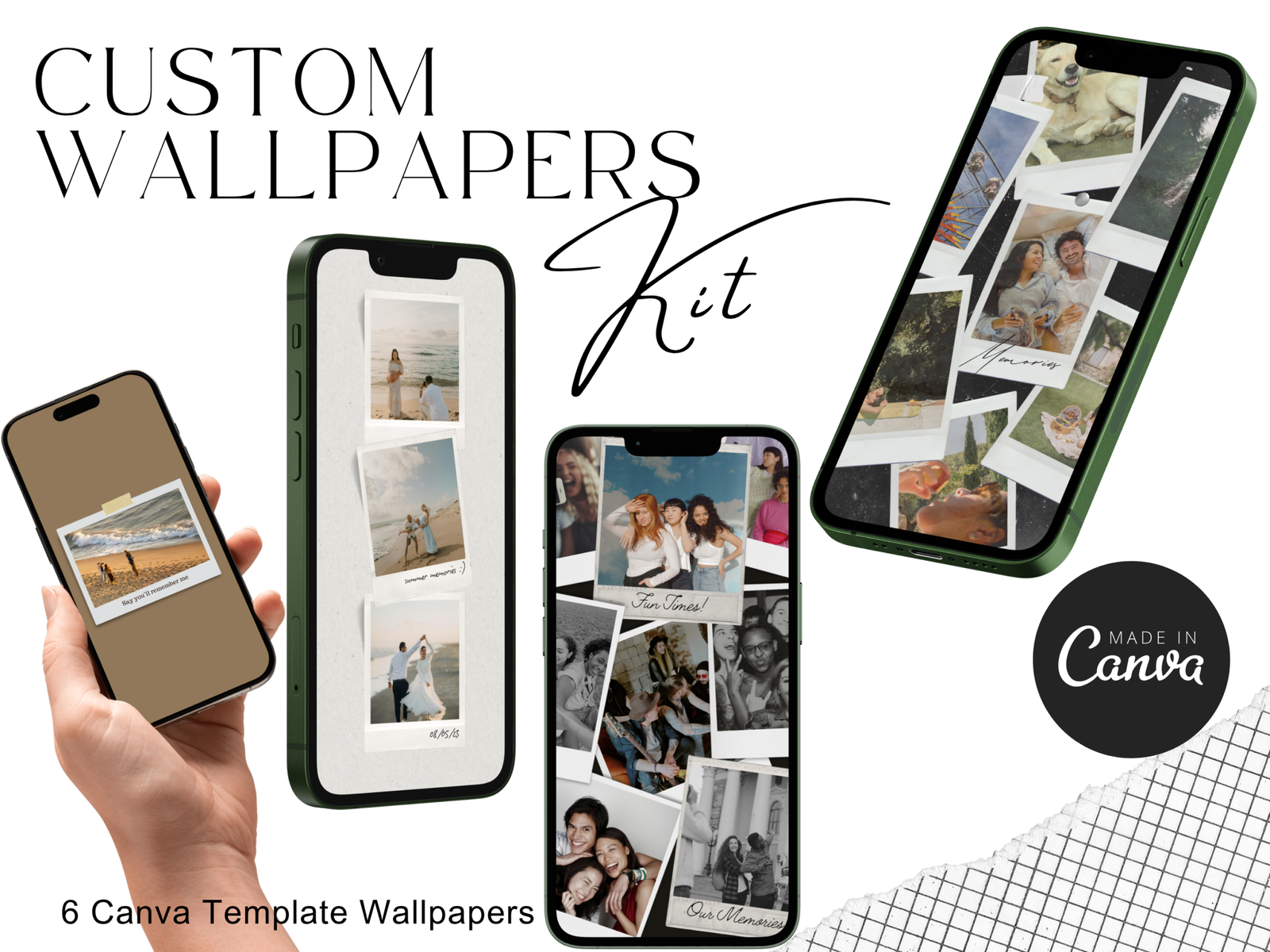
Best for · A photo-led phone collage
Wicked Creative · Six editable Canva layouts with Polaroid-style frames. Replace the pictures, text and colors using the Canva link in the PDF.
Use two frames for goals and a third for a picture from a good day. Choose a layout with an open zone for the time. Move any caption that lands behind the clock when you test it.
Canva Phone Wallpaper 1080 × 1920 px
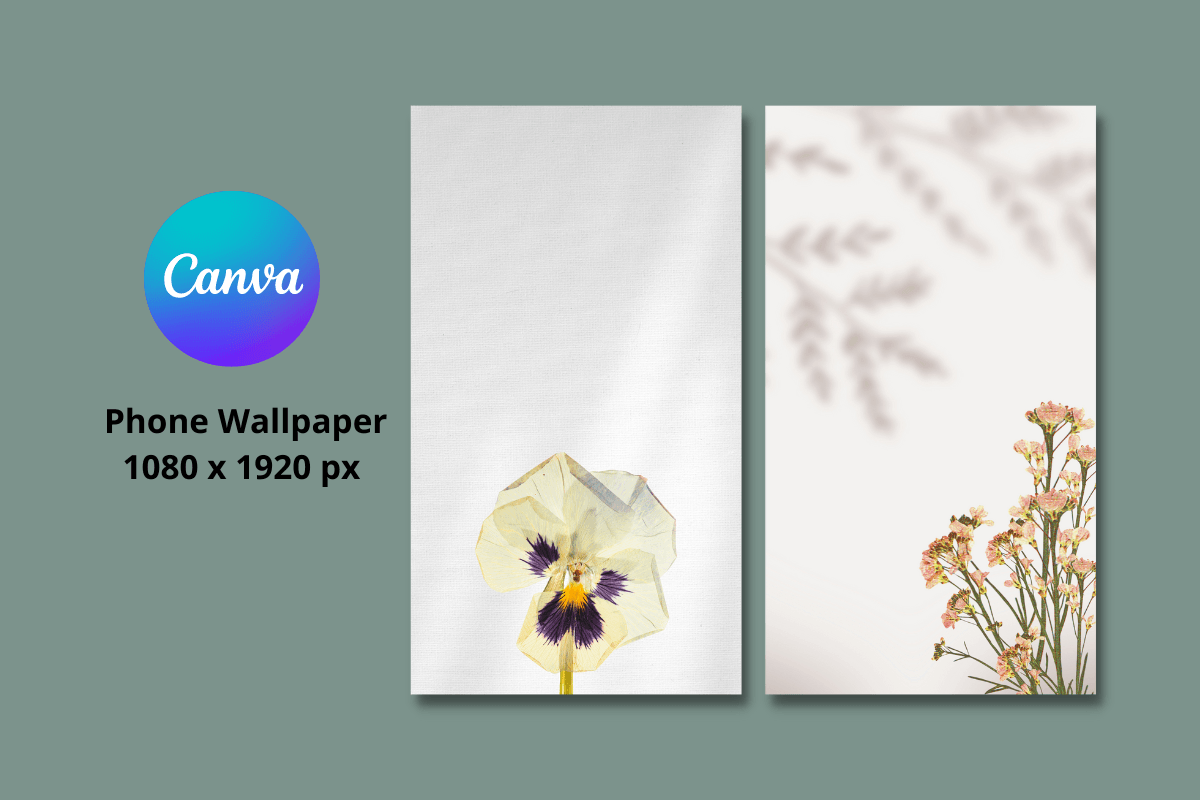
Best for · A quiet phone background
sylvunique · Nine editable minimalist designs on a 1080 × 1920 px canvas. The download includes a PDF with the Canva link.
Choose the layout with the quietest area behind your clock. Try one meaningful photo and a color drawn from it. If your phone is taller than 9:16, make a copy at your screen’s proportions before exporting.
Girl Boss Phone Wallpapers | Canva
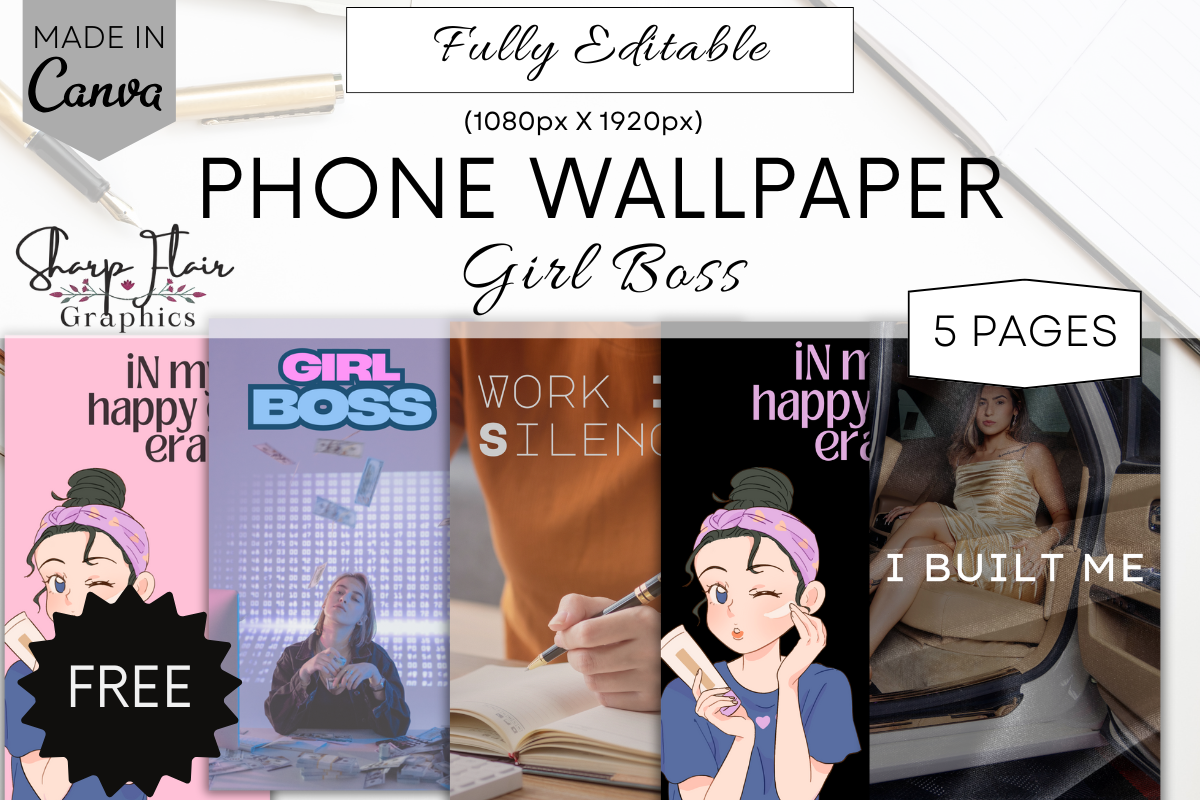
Best for · A short line to read at a glance
Sharp Flair Graphics · Five editable Canva phone wallpaper templates with motivational designs.
Shorten the message to a verb and a few words, then set it beside a small goal photo. If your home screen is full of apps, try the text on your lock screen.
Desktop wallpapers
Vision Board Editable and Printable
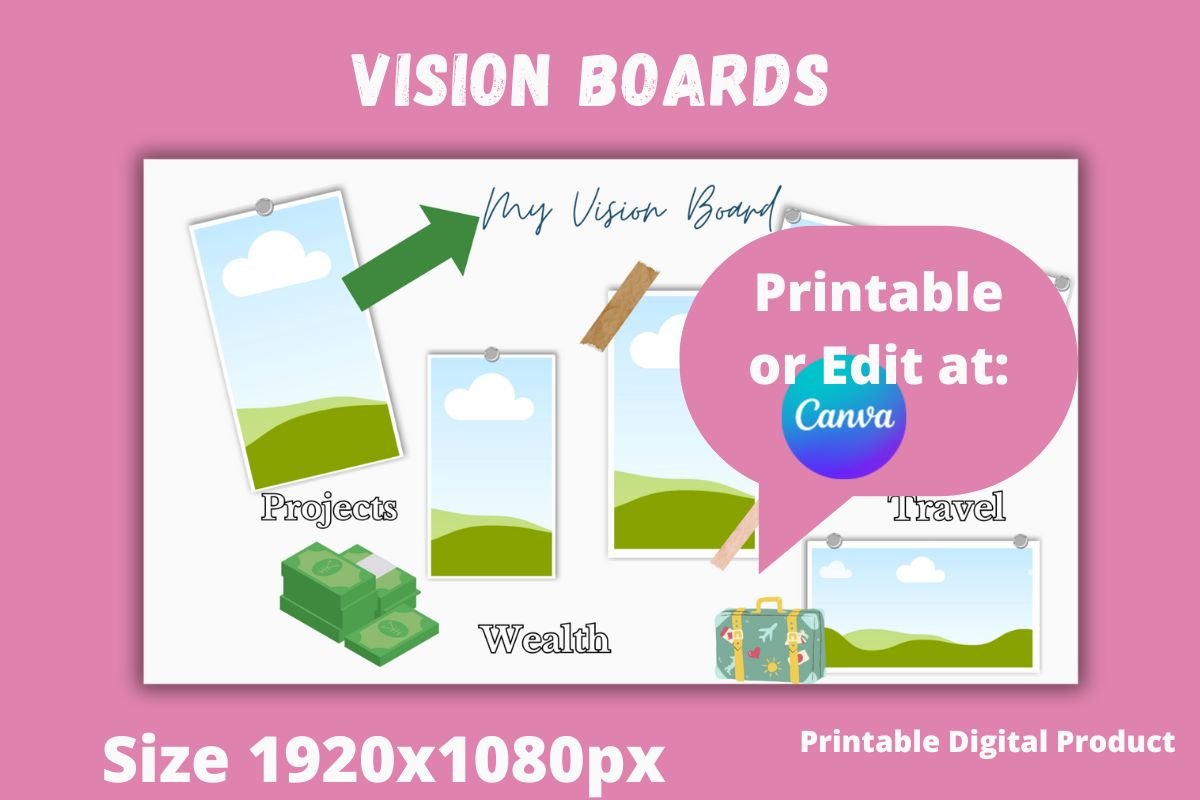
Best for · Several goals on a wide screen
Happy Sewing Time · A 1920 × 1080 px editable Canva vision board that the designer lists for desktop background use.
Group your pictures around two or three goals. On a copy of the layout, consolidate the images into one side of the screen so links and files stay easy to spot.
Luxury Vision Board | Canva Template
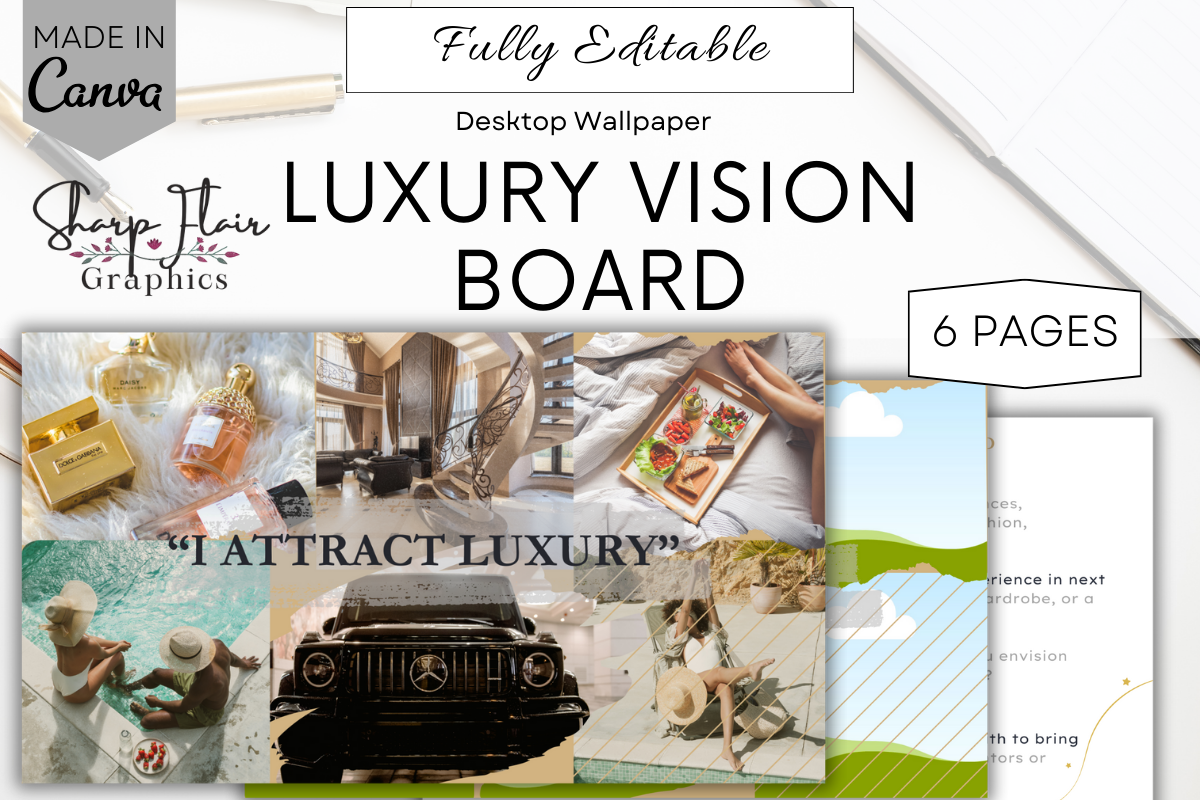
Best for · A wide editorial collage
Sharp Flair Graphics · A 1920 × 1080 px desktop design with a sample board, an editable template and four reflection pages.
Pick one anchor image and tone down the pictures around it. Leave a plain strip for folders. Keep longer notes on the reflection pages so the wallpaper is easy to take in at a glance.
Self-Care Vision Board | Canva Template
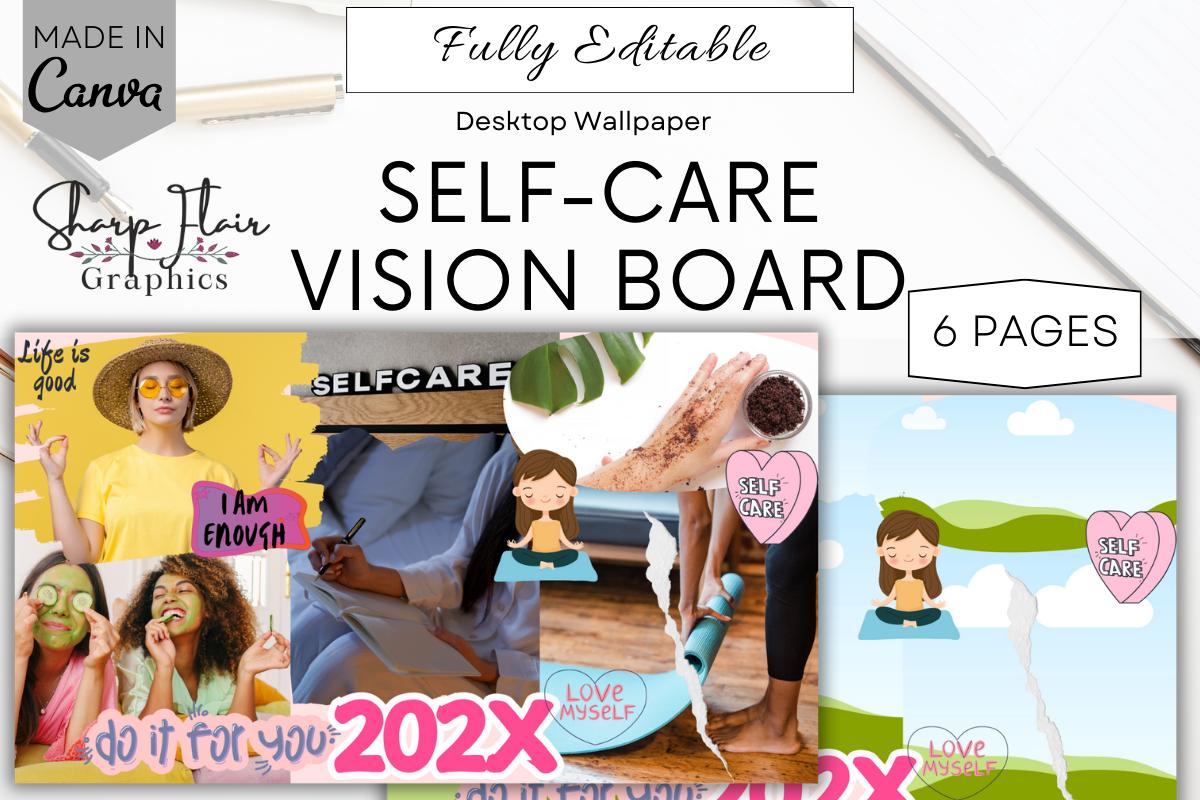
Best for · A wallpaper for everyday routines
Sharp Flair Graphics · Six editable Canva pages accessed through a PDF link. The listing specifies 1920 × 1080 px for the desktop wallpaper.
Pair each picture with an action you can fit into your day, such as “Walk at lunch.” Keep the longer prompts in the editable file and save the screen space for words you can read quickly.
Editable Wedding Vision Board | Canva
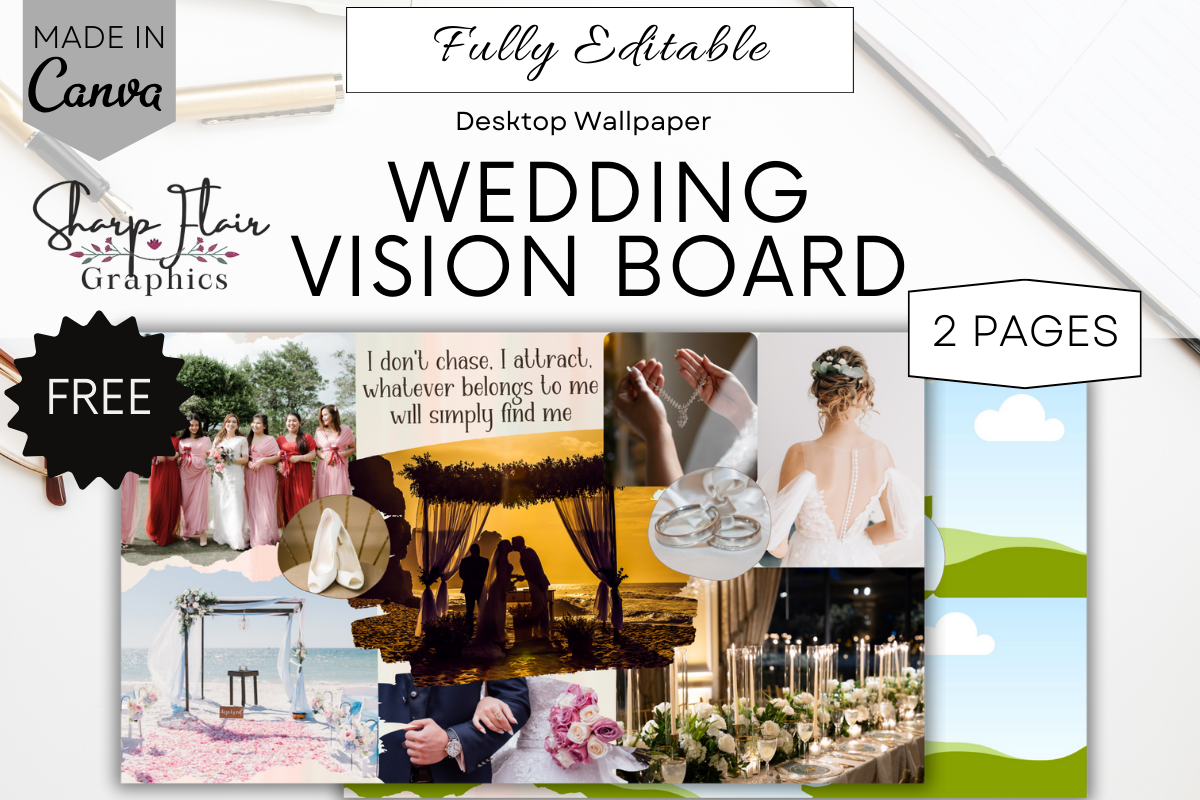
Best for · A desktop board for one event
Sharp Flair Graphics · A 1920 × 1080 px Canva design with one editable example and one editable layout. The ZIP contains a PDF with the Canva link.
Use the sample to see how the venue, flowers and palette sit together, then make your own version on the second page. Leave the side of the screen you use for files open.
Didn't find what you were looking for?
Use the search below to explore more options on Creative Fabrica.
For more formats, including tablet planners and editable layouts, see the digital vision board guide.
Vision board wallpaper FAQs
What size should a vision board wallpaper be?
Match the pixel dimensions and shape of the screen where you’ll use it. A 1920 × 1080 image fits a 16:9 layout. A taller phone or a 16:10 laptop needs its own version if you want to preserve the full composition.
Can I use the same vision board on my phone and laptop?
Yes. Keep the same photos, palette and wording, then rearrange them from a portrait layout into a landscape one. Keep the phone clock and the desktop icon area clear in their respective versions.
How do I keep the clock from covering my collage?
Leave space near the top, place the main photo below the clock, and test with your actual clock size, widgets and notifications. Move key details inward if the phone zooms in on the image.
Why does my wallpaper look blurry?
Start with sharp photos and export at your screen’s resolution. If the device zooms into a smaller image to fill the screen, export a new copy with the right aspect ratio and check it at full size.
What can I put on a vision board wallpaper that feels personal?
Try your own photos, an image connected to a project and a short reminder with a verb. Put “Call the pottery studio” alongside a wheel or “Pack my running shoes” beside a trail photo. You can keep the sentence in the editable file if it crowds the screen.
How many pictures should I use?
Start with two or three on a phone. On a wide desktop, add more only if you still have space to see the files, clock or dock. Inspect the result from your normal viewing distance.
Start with the screen you see most. Pick a photo that suggests something you can do this week, place it where it will stay visible, and set the wallpaper. The other two layouts can follow when you know which picture you keep coming back to.