
Creative playground, not just a prompt box
Images, video, editing, audio, 3D and useful mini-tools live under one roof.
Multi-format creators
Bloggers, Pinterest creators, social teams, designers, printables sellers and small brands.
Coins + auto-renewal
The trial is useful, but it can become paid when time—or the included coins—runs out.
So… what is Creative Fabrica Studio AI?
Think of it as a browser-based creative hub rather than one lonely AI generator. The Studio AI dashboard opens the door to image, video, audio, 3D, marketing, utility and crafting tools. You can jump into a dedicated editor, start with a template, browse community inspiration or upload something you already made.
That matters because real creator workflows rarely stop at “make me an image.” A blog graphic becomes a Pinterest pin. A product visual becomes a Reel. A rough concept needs a cleaner background, better resolution and a vertical version before anyone can actually publish it.
The workflow creators will actually care about
You could test fifty random prompts. A smarter test is one connected mini-project. Here is the path that makes Studio AI interesting:
01 GenerateCreate the hero visual.
02 EditFix the details and format.
03 AnimateTurn the idea into motion.
04 PolishOpen the clip in the editor.
For example: make a dreamy font-pairing graphic, clean it up for your brand, animate the type for a short social video and finish the clip without hunting for another editor. That is a much more realistic test than generating a random cyberpunk cat and never using it again.
Four tools, one creator loop
Here is what each part of that loop brings to the table.
01
AI Image Generator
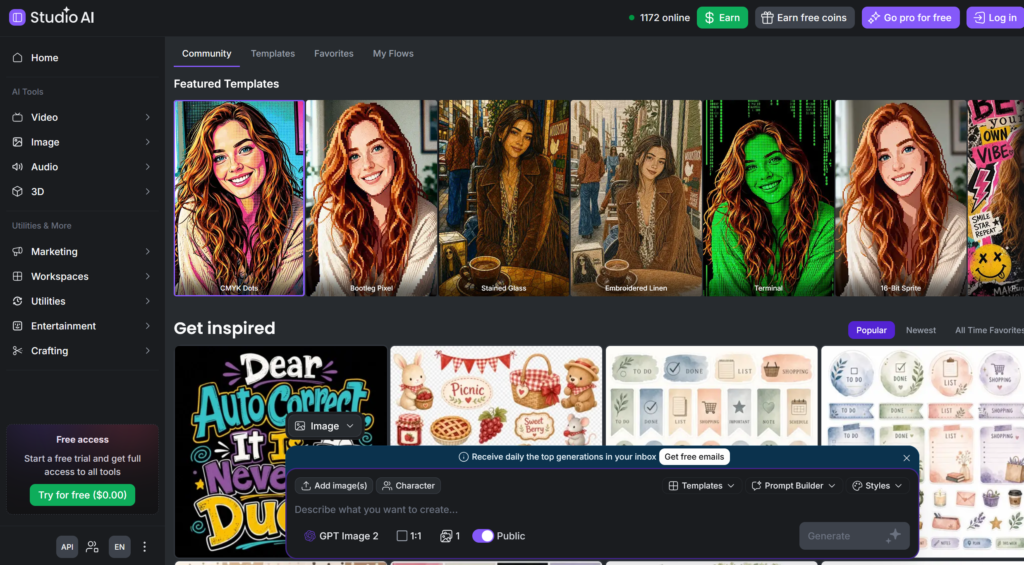
Studio AI’s image generator—shown through the Flow workspace—lets you build from text, source images, templates and styles. The current interface also surfaces a prompt builder, character options and aspect-ratio controls, so you are not trapped in front of one empty text box.
Creator use case: draft a blog hero, then make square and vertical concepts for Instagram or Pinterest while keeping the same visual direction.
02
AI Image Editor
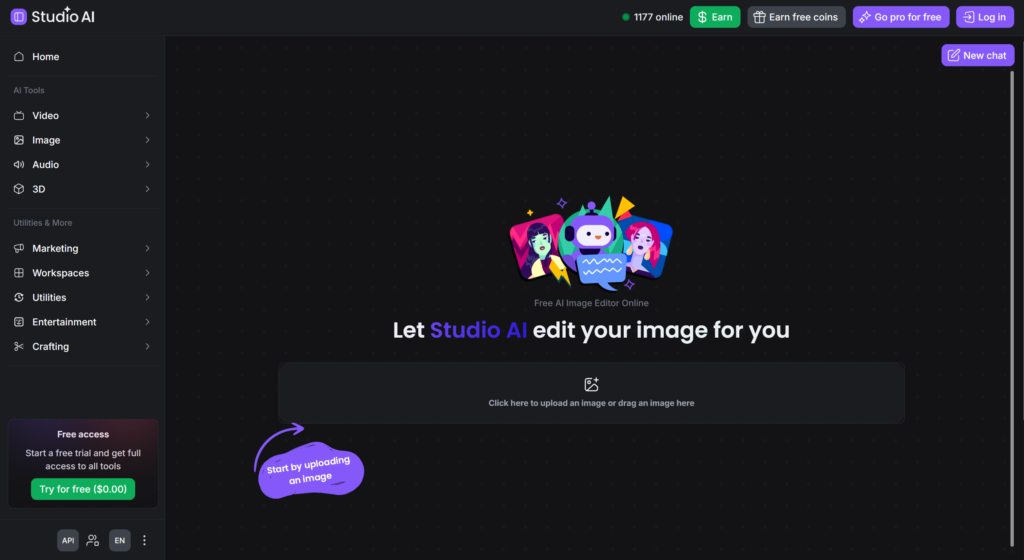
Already have something close—but not quite right? Upload it and use the conversational editor for targeted changes. That is useful when you want a new background, a cleaned-up detail or a platform-ready variation without throwing away the whole design.
Creator use case: take your best generated visual, remove distractions, adapt the composition and turn it into something that actually feels on-brand.
03
AI Video Generator
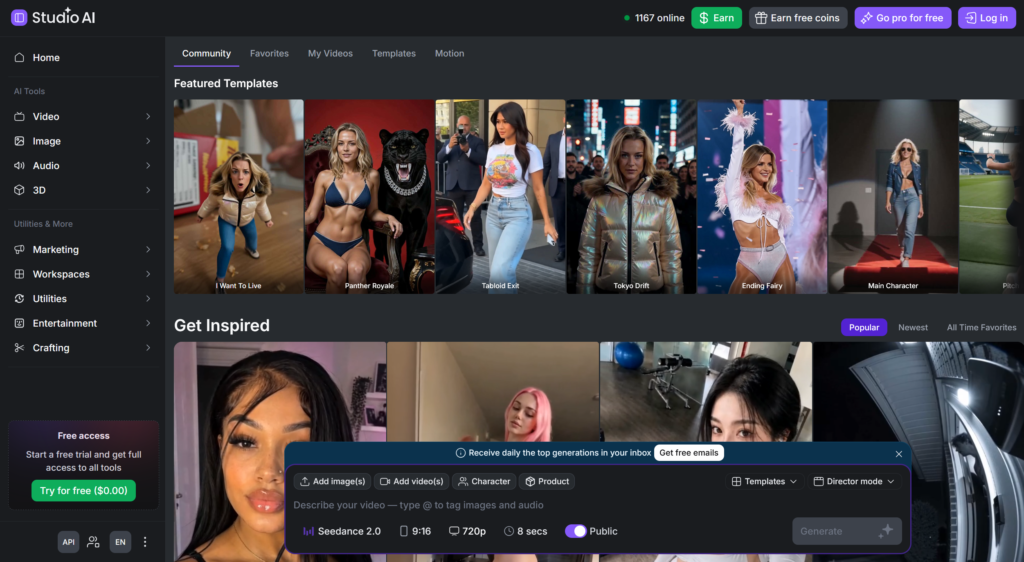
This is more than “type prompt, hope for the best.” The current workspace shows inputs for images, videos, characters and products, along with templates, director-style controls, aspect ratio, resolution and clip duration.
Creator use case: animate a still graphic for Reels, Shorts, TikTok or a Pinterest video instead of publishing the exact same static asset everywhere.
04
AI Video Editor
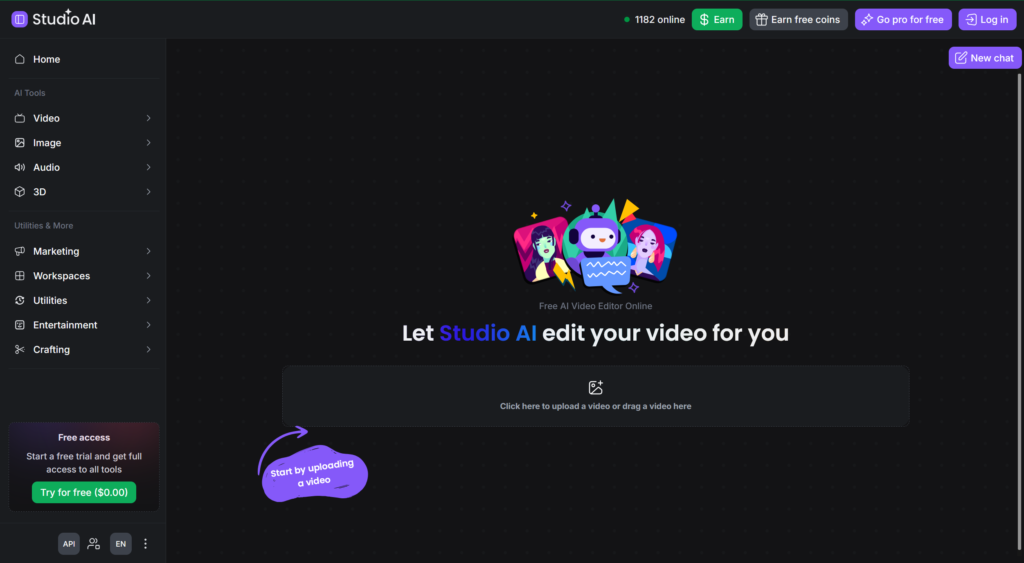
The Video Editor begins with your uploaded clip and a chat-style workspace. It is aimed at creators who want help shaping a video without first learning a professional editing cockpit packed with tiny controls.
Creator use case: take the generated clip into a second pass, or upload existing footage when you want a simpler AI-assisted edit.
The “small” tools might save the most time
Studio AI also lists tools for background removal, upscaling, vectorization, fonts, logos, design feedback, people removal, audio, 3D, coloring pages, collages and more. They are not as flashy as a video generator, but they solve the annoying steps between “cool result” and “ready to publish.”
Image Upscaler
Vectorizer
AI Font Generator
Coloring Page Maker
Audio & 3D tools
Free trial and coins—without the boring confusion
Studio AI runs on coins because a quick image edit and a video render do not cost the platform the same amount to process. The official help center currently says the 30-day trial includes 25,000 coins, and you can see the required amount before you generate.
The current help page also states 620,000 coins for a paid subscription, but Creative Fabrica notes that coin allocations and per-tool costs may change. So instead of freezing an old price into this review, we recommend checking the live offer for your account and region.
Can you actually use the results commercially?
The current Studio Terms say you retain ownership of the AI-generated assets you create and may use your creations in unlimited physical and digital projects for personal and commercial purposes—subject to the full terms and any third-party rights involved.
✓ The good news
Commercial use is supported for your AI-generated Studio creations under the current terms.
! Your responsibility
Do not use protected logos, copyrighted characters, deceptive deepfakes or source files you do not have permission to upload.
Library templates and icons also keep their own restrictions: you cannot simply extract a library element and resell it as-is. And check the Public toggle. The terms say that creations shared publicly in the community can be downloadable by other users—important for client work, unreleased products and original brand concepts.
Smart creator habit: keep your prompts and source files, double-check visibility before generating and read the current Studio Terms and License before using high-value work commercially.
Studio AI vs All Access: same brand, different deal
Here is the one distinction that saves the most confusion:
Studio AI
All Access
Short version: Studio AI helps you create. All Access helps you download ready-made assets. Some creators may want both, but buying one does not automatically unlock the other.
The honest pros and cons
Why it hits ✦
- Image, video, audio, 3D and utilities in one place
- Generation and editing fit into one workflow
- Templates and community inspiration lower the blank-page panic
- Commercial-use terms cover original AI creations
- Mini-tools can speed up everyday creator tasks
What to watch 👀
- Coins make the real cost depend on your workflow
- The trial may convert when time or coins run out
- Models and features can change quickly
- Marketplace downloads require a separate subscription
- Public settings matter for private or client work
Final verdict: worth the hype?
Yes—for the right kind of creator. Studio AI makes the most sense when your content already moves across formats: blog image to pin, pin to Reel, product photo to promo clip, printable idea to polished asset. In that world, the convenience of one connected toolbox is the headline.
If you only need one generator once a month, the coin system may feel like more platform than you need. But for bloggers, social creators, small brands and design beginners who want to experiment without building a complicated software stack, Studio AI is genuinely interesting.
Try one real project—not fifty random prompts. Generate it, edit it, animate it and polish it. That will tell you more about the value of Studio AI than any feature list.
Studio AI FAQ
+ What is Creative Fabrica Studio AI?
It is a browser-based workspace for AI-assisted image, video, audio, 3D and design tasks, with generators, editors, templates and supporting utilities in one dashboard.
+ Is Creative Fabrica Studio AI free?
The current offer includes a 30-day trial with 25,000 coins. Creative Fabrica says the trial becomes paid when the trial ends or the included coins are used, so check the live renewal terms first.
+ How do Studio AI coins work?
Each AI action can require a different number of coins. The cost is shown before generation and can change depending on the tool and current model.
+ Does All Access include Studio AI?
No. Studio AI and Creative Fabrica All Access are separate subscriptions. Studio AI covers AI tools; All Access covers eligible marketplace downloads.
+ Can I use Studio AI creations commercially?
The current Studio Terms support personal and commercial use of your AI-generated creations, subject to the full terms, third-party rights and restrictions on library content.
+ Are my Studio AI creations private?
Check the Public setting. Under the current terms, creations made public in the community may be downloadable by other users.
+ Which tool should I try first?
Start with a real project. Generate one useful image, refine it, animate it and open the result in the Video Editor. That tests the connected workflow instead of only one flashy feature.
Your next idea deserves more than one format
Open Studio AI, check the current trial and see whether its creator workflow fits the way you actually publish.
Share this guide and save them the subscription confusion.